
How to Set Up Battery Restrictions and Background Activity
There are two main types of settings for this.
Type 1:
Battery restrictions and Background activity are combined into one setting.
Go to Type 1
Type 2:
Battery restrictions and Background activity are separate settings.
This type is common on devices from Chinese manufacturers.
Go to Type 2
Type 1: Combined Settings
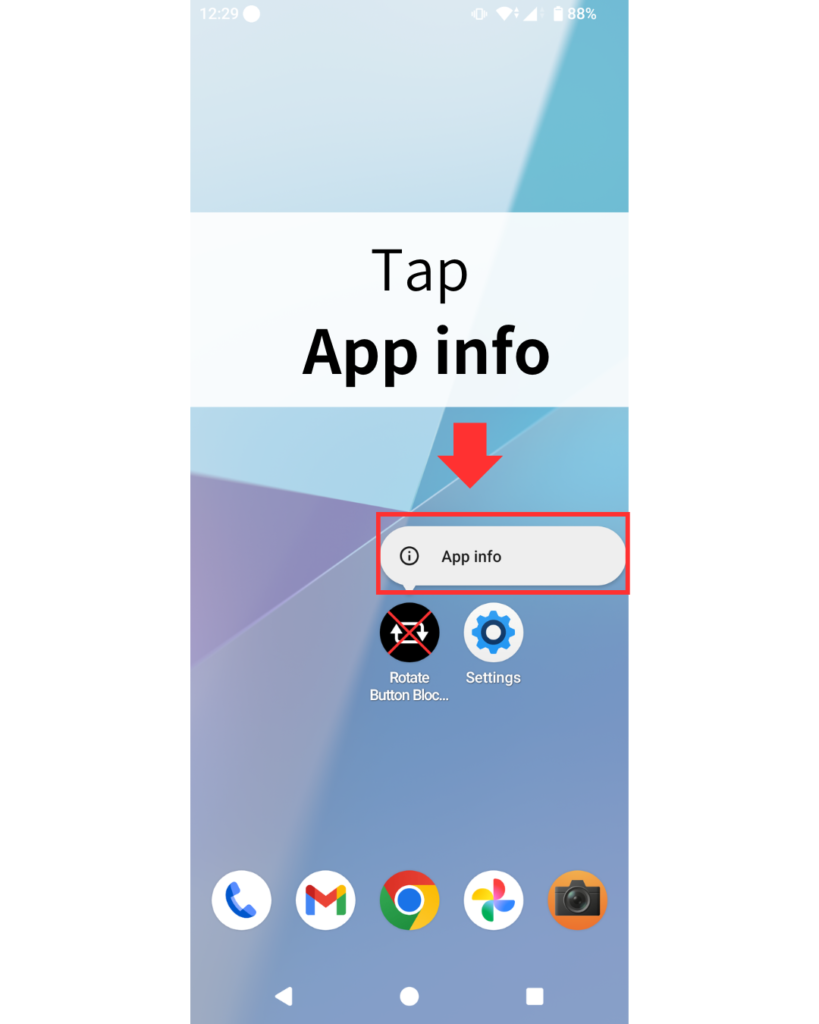
- Press and hold the Rotate Button Blocker app icon
- Tap App info
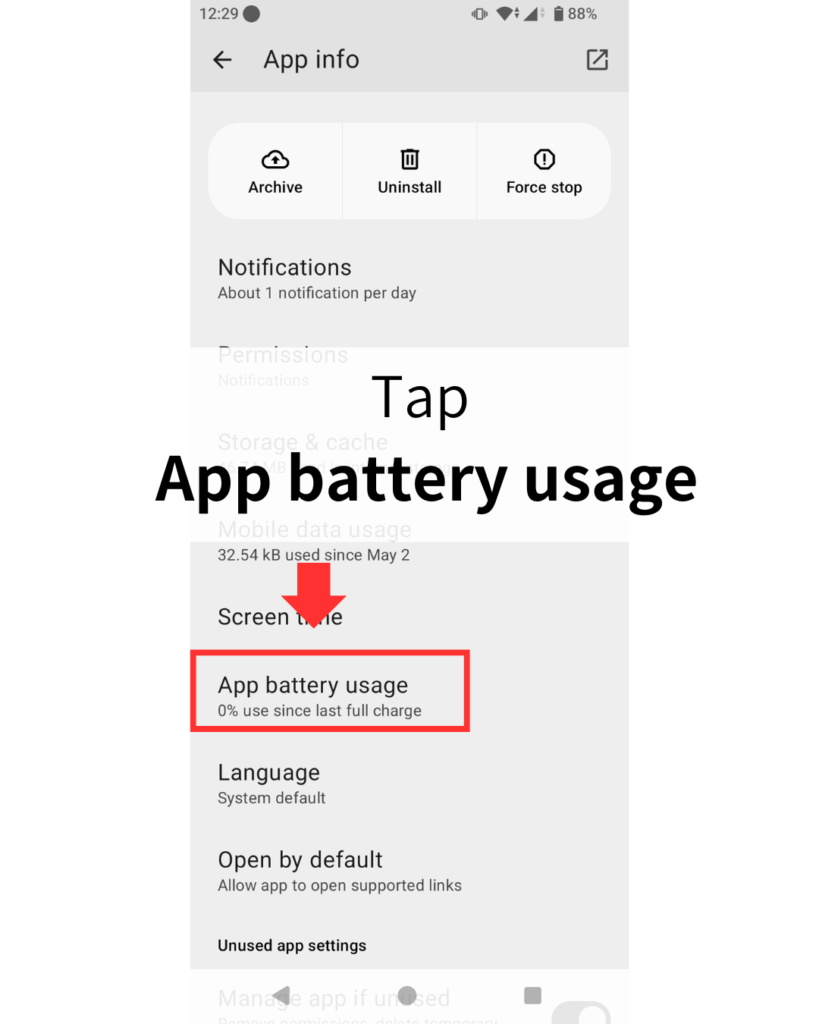
- Tap App battery usage
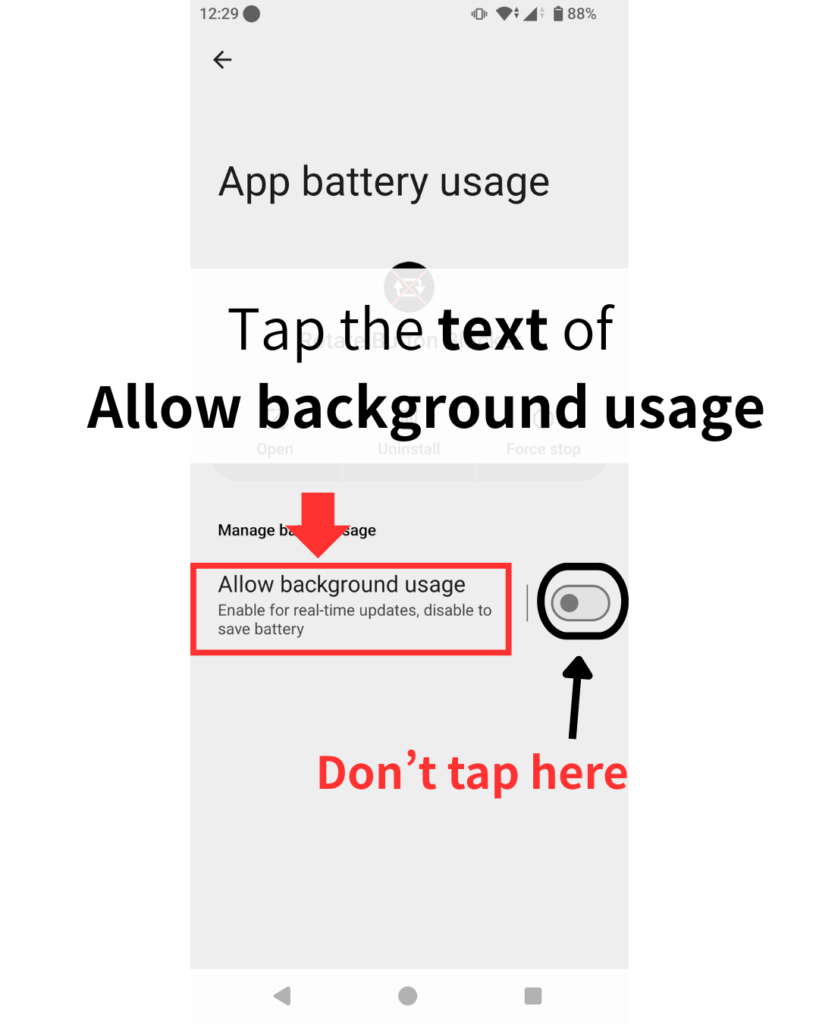
- Tap the text of Allow background usage
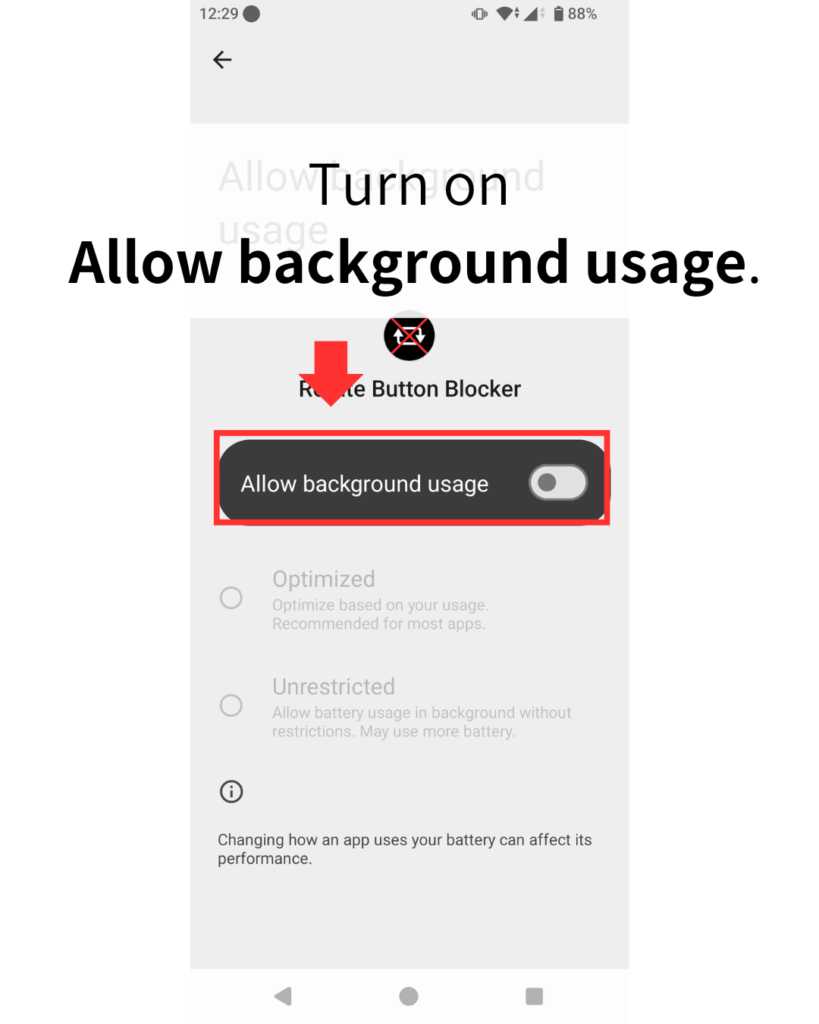
- Turn on Allow background usage
- Set Battery restrictions to No restrictions or Unrestricted
Press and hold the Rotate Button Blocker app icon.
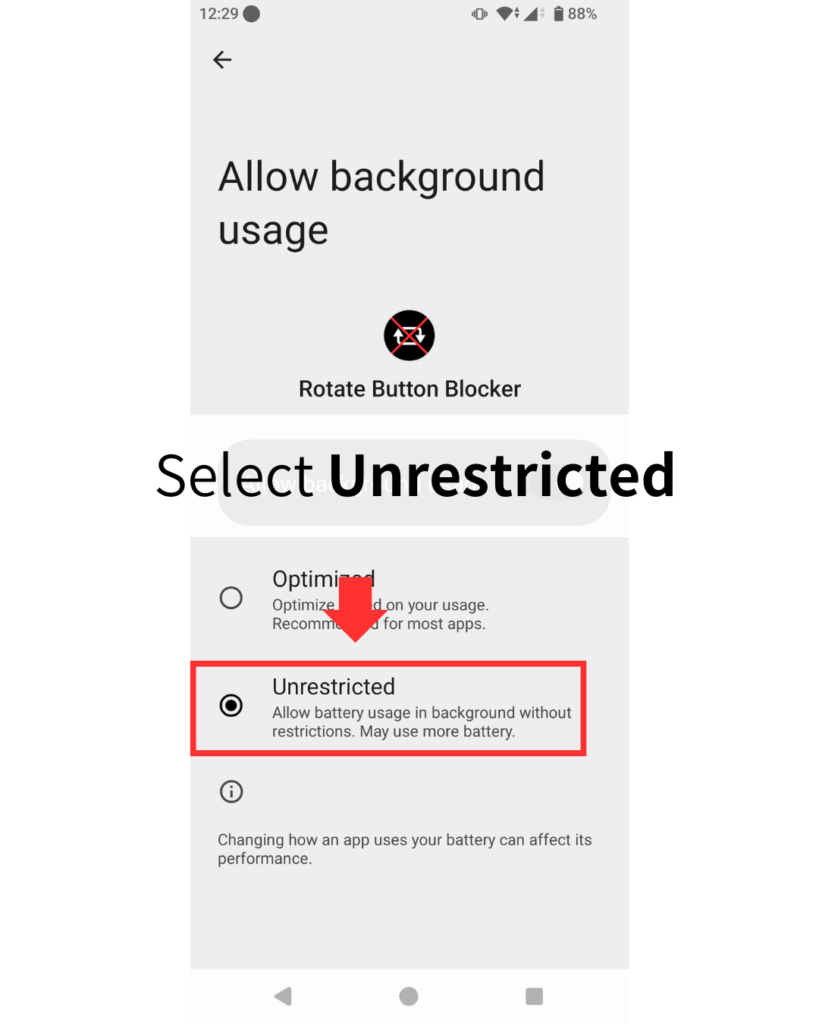
Set Battery restrictions to No restrictions or Unrestricted (name may vary by device).
You have now finished the Type 1 setup.
Type 2: Separate Settings
- Press and hold the Rotate Button Blocker app icon
- Tap App info or the info icon
- Tap Battery or Power
- Select No restrictions or Unrestricted
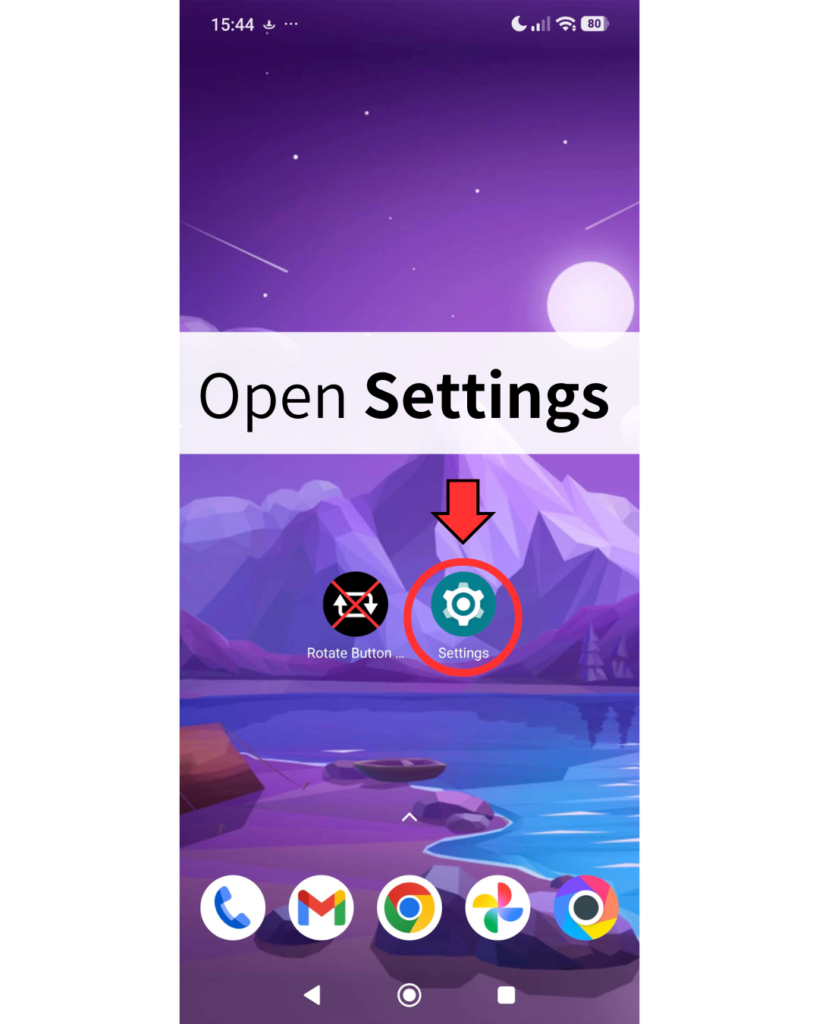
- Open Settings
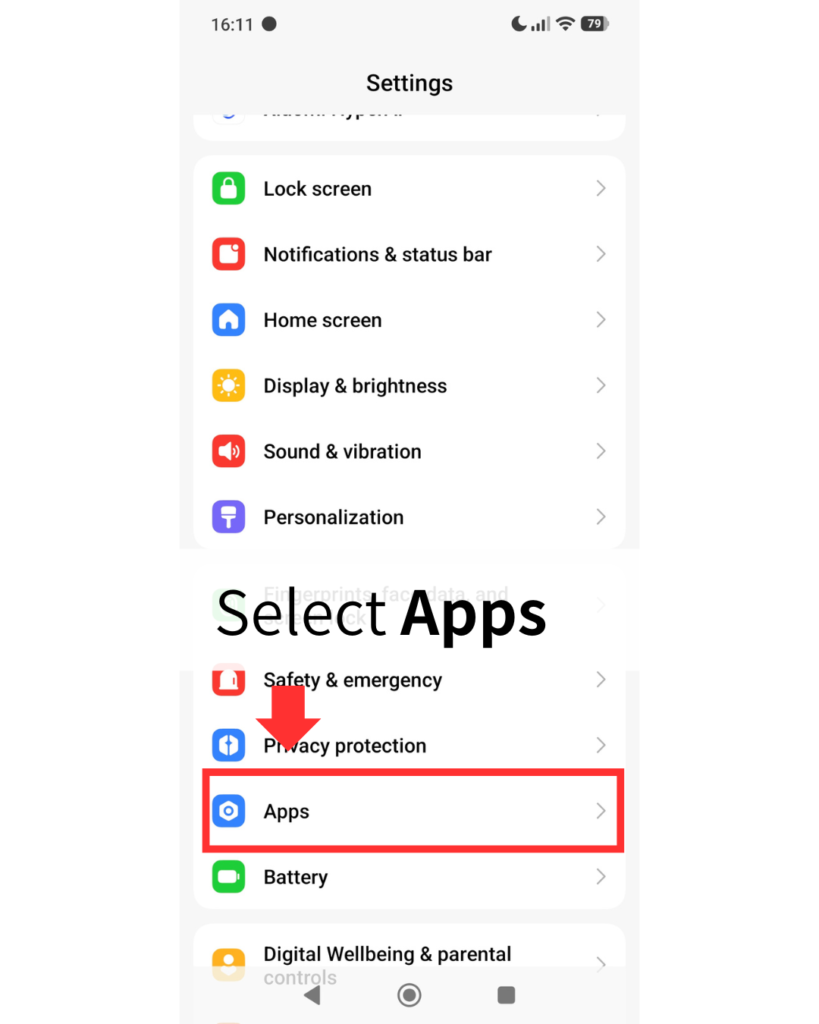
- Select Apps
- Tap Background autostart or Auto lunch
- Tap Rotate Button Blocker
Press and hold the Rotate Button Blocker app icon.
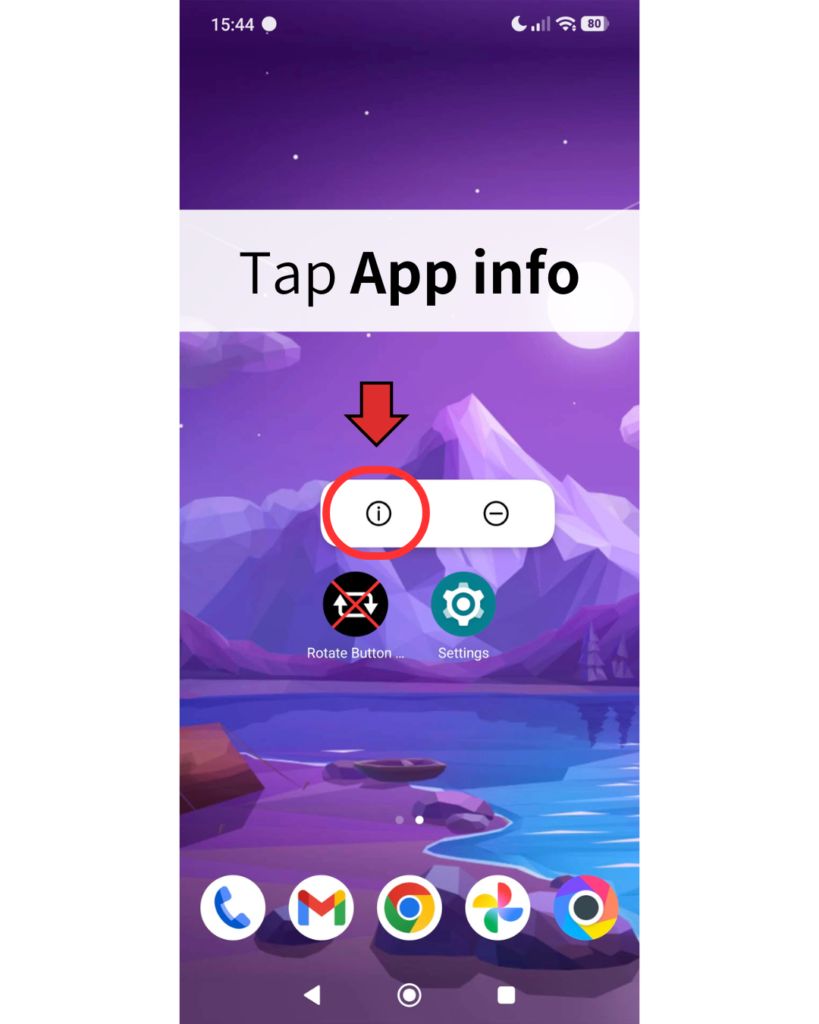
Tap App info or the App info icon.
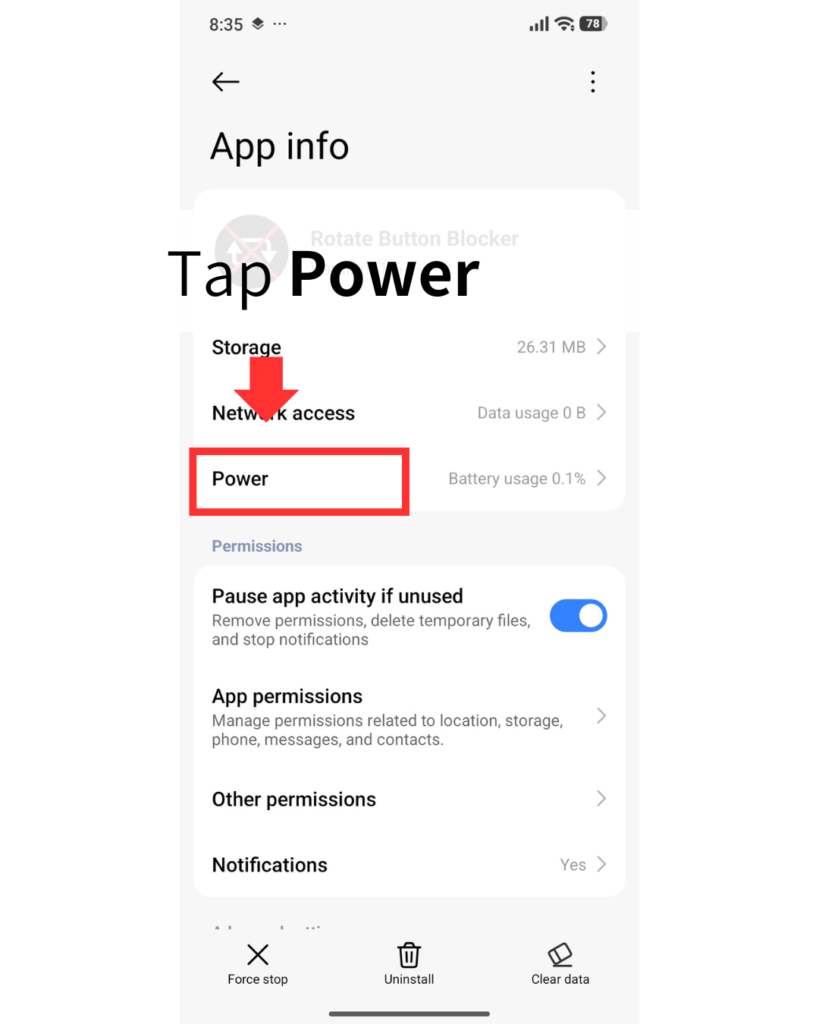
Tap Battery or Power (name may vary by device).
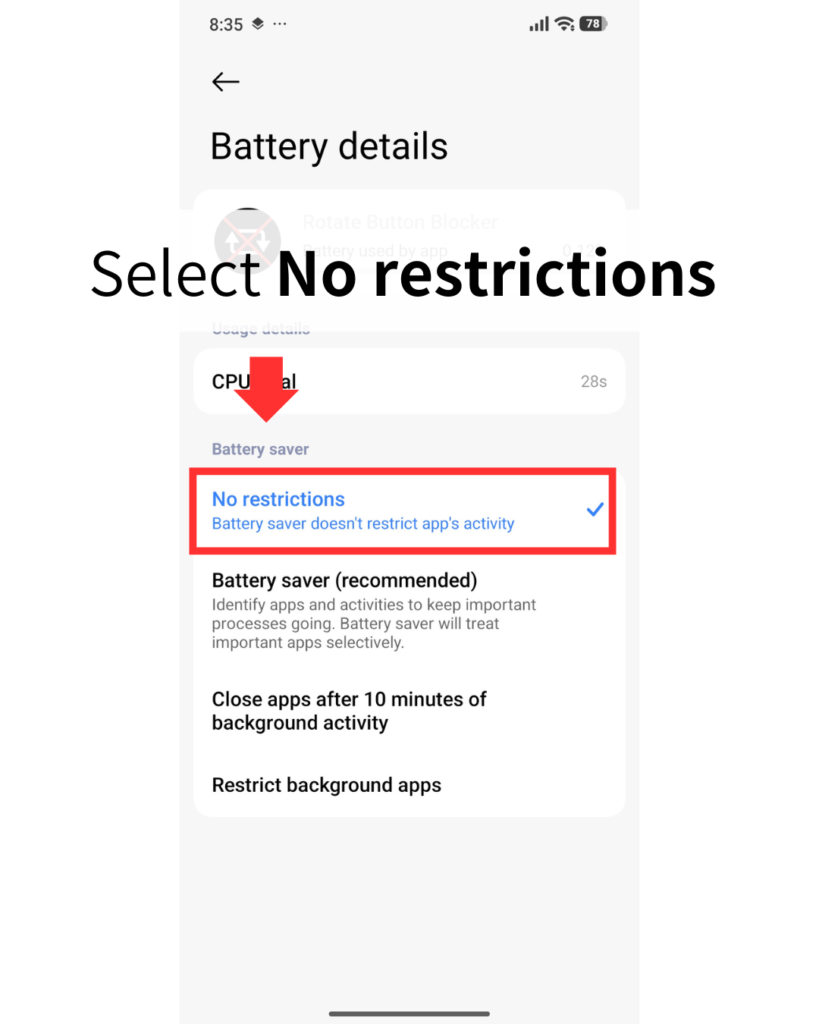
Select No restrictions or Unrestricted (name may vary by device).
You have now finished turning off Battery restrictions.
Next, we will set up Background activity.
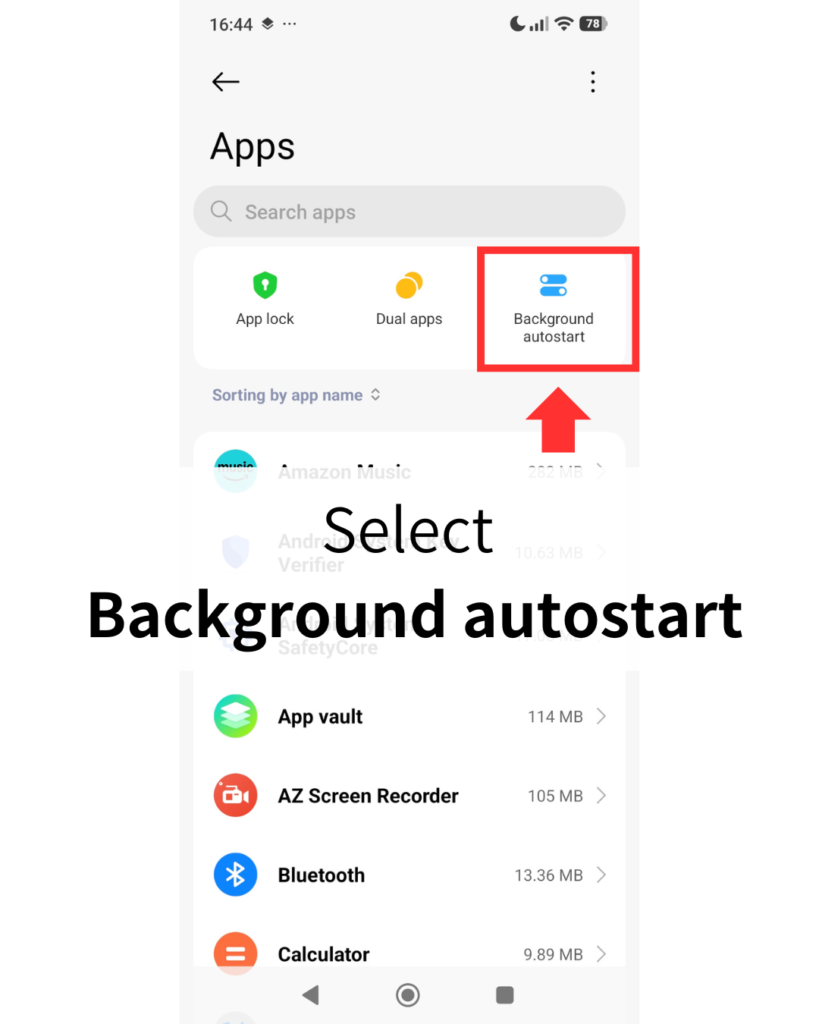
Select Background autostart or Auto lunch (the name may vary depending on your device).
If you cannot find it under Apps, it may be under Battery.
These options may appear in different places depending on your device.
Please look for the matching option on your device.
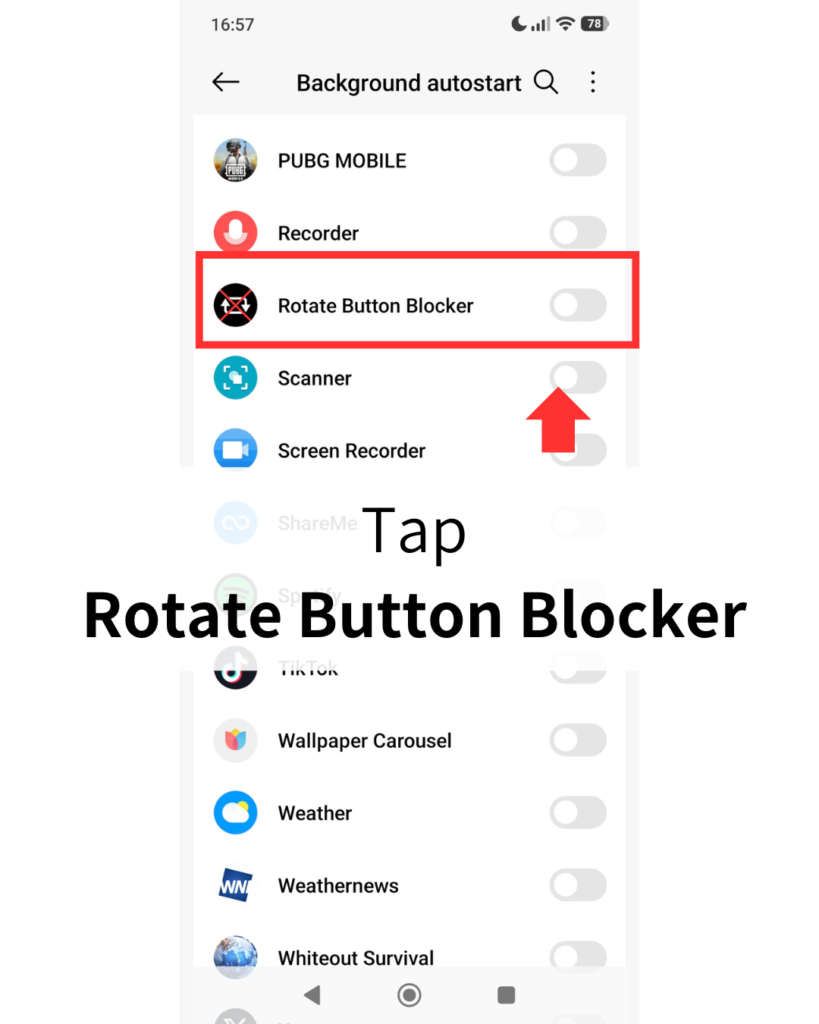
You have now finished setting up Background activity.